
Welcome to Yulio
Create Simple, Stunning VR Content
Follow along with our on-boarding learning tips and resources.
.jpeg?width=254&name=BUSINESS%20READY%20VR%2076%20(1).jpeg)
Getting Started with Yulio
Welcome to Yulio – we're so excited that you're here. Soon, you're going to discover that Yulio is the best way to create, present, and share your design stories. It is fast, simple and stunning.
STEP 1
Create and Upload VR-Ready Content
The next step on your Yulio journey is to prepare VR-ready content and upload to Yulio. You can create VR experiences by rendering scenes (cubemaps, panoramas or equirectangular images) from your CAD software or by uploading 360-photography.
There are a few different options for creating your VR-ready content:
|
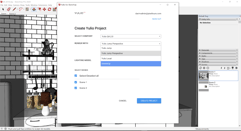
Yulio Jump If you use Revit, SketchUp or CET, you can now use Yulio to create content for VR and AR (augmented reality). Render your projects directly through our cloud- based rendering engine Yulio Jump. Be sure to begin by reviewing our Yulio Jump User Guides that take you through downloading the plugin, and how to author and prepare your project for rendering. Pro Tip: When preparing your scene for rendering, we recommend setting your camera to 5′ 6″ as that is an average height in North America. But you can get creative and lower it to a seated height, for example.
Once you’re ready, follow these steps to upload your content to Yulio and create your first VR project. |
CAD Tools
If you’d like to render directly from a different CAD tool, you can manually upload your own cubemap, panorama or equirectangular image source files to Yulio. Just follow our scene requirements.
|
Uploading 360-Photography With 360 photography, you can present a space without taking clients on-site or demonstrate a 'before' image before presenting your final proposal. |
Visualization Services
Get the most out of Yulio and your VR projects without our authorized content partner – KiSP. The KiSP team is equipped with the expertise and solutions to deliver stunning VR visualizations so your customers can fully understand your proposed design.
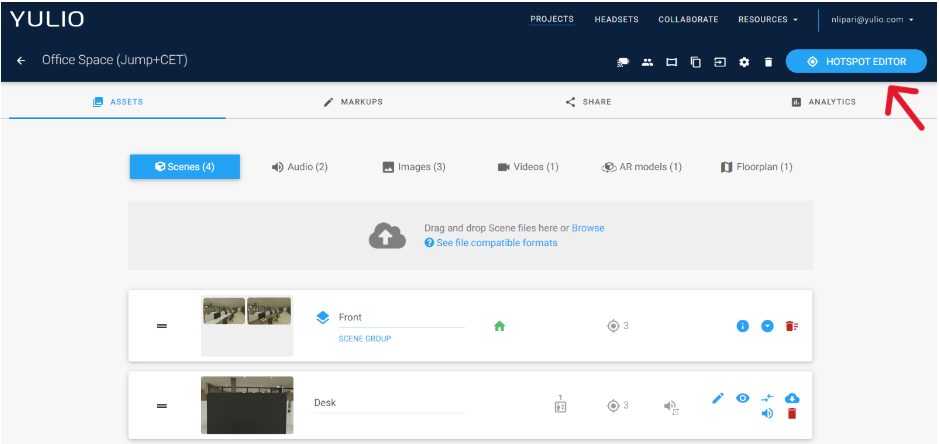
Navigational Hotspots
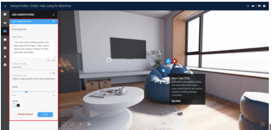
Navigational hotspots allow you to explore your VR projects through point-to-point navigation. Navigational hotspots are a great way to make your designs more immersive and to allow your clients to “walk-through” and experience the full scope of your project.
|
Audio Hotspots Control and create the ambiance you want with audio hotspots. This hotspot can be used to describe design choices to your client or provide details on specific objects in the scene, all while your client is immersed in your design Pro tip: You can add a personal touch to your project with a recorded audio message for your client or even a word from the designer who created the virtual experience.
|
Text Hotspots
Text Hotspots are a fantastic way to share additional details about the space or a line of products featured within it. Whether it be product specs or a short note on design intent, this feature helps you communicate the finer aspects of your project. Plus, you can even add a URL to drive your clients to your website or a product page.
|
Image Hotspots Yulio’s image hotspot and basic video hotspot features allow you to upload still images and YouTube videos* to your project. Image and video hotspots are another way to enhance your design and tell your story in the context of the VR scene**. *YouTube video author must allow embedding **YouTube videos are viewable in browser mode but cannot be viewed on a VR headset |
|
Pro Tip: You can use this feature to include a recorded forward from the President of your company or even a word from the designer who created the virtual experience. Audio Hotspots are a fantastic way to build a connection |
Viewing
_edited.jpg?width=700&height=310&name=Oculus-GO%20(1)_edited.jpg "Oculus-GO (1)_edited")
Meta Quest 2,3 and Pro
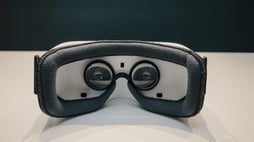
Our most recommended viewing option is with a Meta Quest headset. The Meta Quest 2 offers a stunning standalone VR experience at an affordable cost, and the Meta Quest 3 and Pro boast a color camera for AR/Mixed Reality.
Browser Mode: Fishtank Viewer
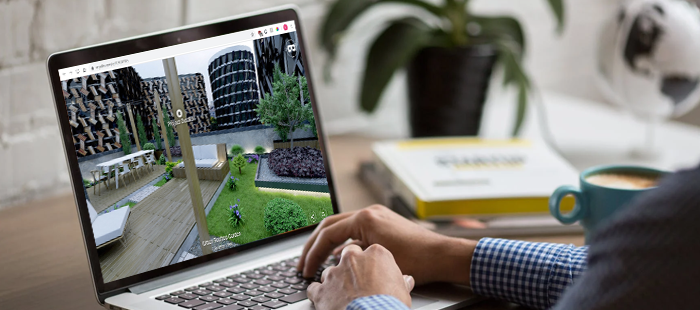
If you don't have a VR headset or accessory, browser mode or “fishtank viewer” allows you to experience scenes as interactive 360-degree panoramas from your desktop, tablet, or mobile device
Sharing
URL
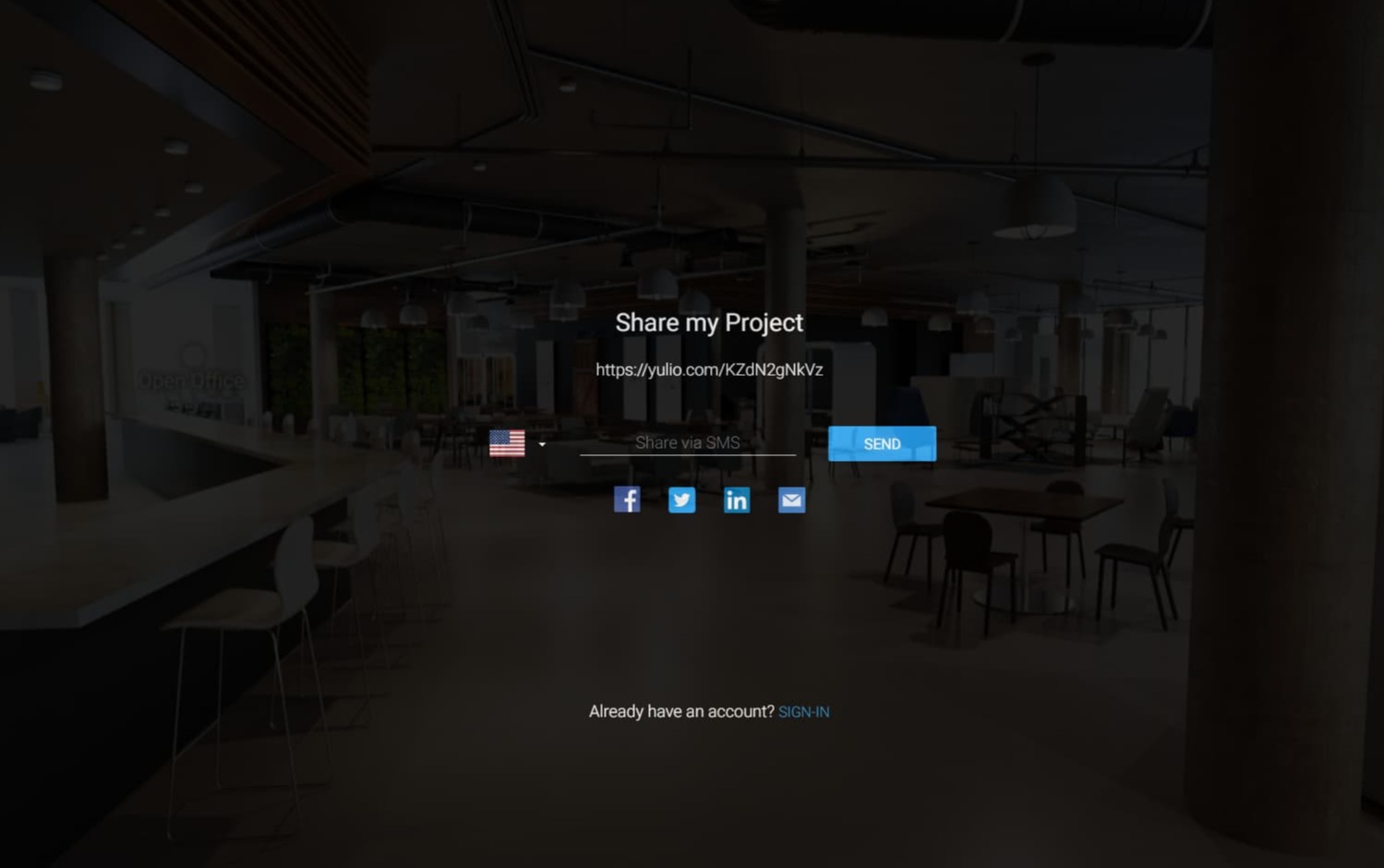
Each Yulio project has its own unique URL. Simply copy and paste the project URL to share in an email, on social media, or as a hyperlink on your website.

Text
Our SMS sharing feature allows you to share your VR projects to anyone, anywhere with a simple text message. Your client will receive the project link directly to their smartphone in seconds, where they can open and view the project on a web browser.

Embed
Capture the attention of your website visitors by embedding your project onto your website and landing pages. Placing a piece of interactive media can excite, engage, and encourage visitors to explore more of what you have to offer.
What is Collaborate?
Collaborate is Yulio’s most popular feature for presenting with clients or colleagues. It allows you and your presentation guests to experience the same VR project at the same time, regardless of where you are geographically. The most powerful part of Collaborate is that you can see exactly what your client is seeing - what they are focused on, what is drawing their attention or potentially causing concern.
How to Collaborate:
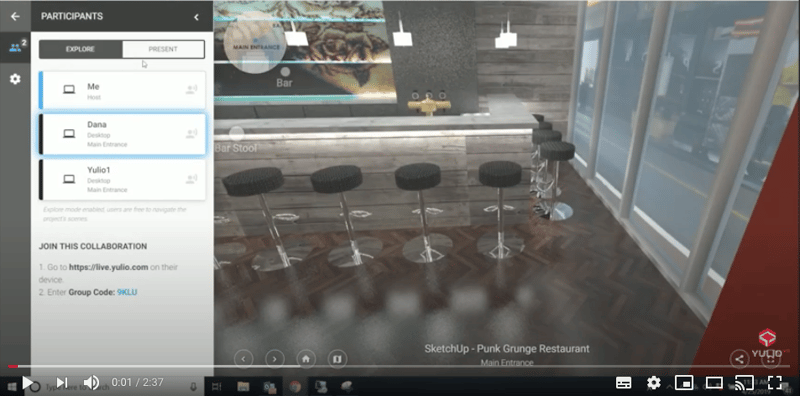
One of the best parts about Collaborate is you can do it from anywhere. Just launch a Collaborate session, share the group code, and start viewing in VR together.
You can learn more about how to launch a Collaborate session in this article or our YouTube video walk through.
Tips for Collaborating:
- Make sure you test a Collaborate session on your network before heading into your meeting. Some offices have secured networks, in which case you may have to follow these settings for Collaborate to work.
- There are two presentation modes available in Collaborate - Present mode and Explore mode. Present mode allows you to control the presentation, direct viewer attention and assign presenter control to your guests. Explore mode gives your guests more freedom by allowing each guest to explore the project at their own pace.
- Don’t forget to take advantage of features like Spotlight and Markup. With the Spotlight feature, you can direct your guests’ attention to a specific area in a scene, and the Markup tool enables you to record client feedback directly within the VR experience.